--
:
--
:
--
一键安装mysql-5.7二进制包脚本
最后更新于:
实战:centos7/centos8 一键安装mysql-5.7二进制包脚本(mysql-5.7.29)(测试成功)

目录
[toc]
适用环境
1mysql-5.7.29
2centos7.6 1810
3
4或者
5mysql-5.7.29
6centos 8.1.1911
此脚本在以上2个环境里均测试成功。
1、脚本
脚本测试成功,可一键部署。
脚本来源:LaoWang from magedu。
链接:https://pan.baidu.com/s/199YdkWnhBMKDUHcYUeEKSw?pwd=hems 提取码:hems
2024.4.6-实战:通用二进制格式安装 MySQL(mysql-5.7.29)-2024.4.6(测试成功)

- 脚本内容
mysql5.7.29_install.sh
 1#!/bin/bash
 2
 3#MySQL5.7 Download URL: https://dev.mysql.com/get/Downloads/MySQL-5.7/mysql-5.7.29-linux-glibc2.12-x86_64.tar.gz
 4. /etc/init.d/functions
 5SRC_DIR=`pwd`
 6MYSQL='mysql-5.7.29-linux-glibc2.12-x86_64.tar.gz'
 7COLOR='echo -e \E[01;31m'
 8END='\E[0m'
 9MYSQL_ROOT_PASSWORD=magedu
10
11check (){
12if [ $UID -ne 0 ]; then
13 action "当前用户不是root,安装失败" false
14 exit 1
15fi
16
17
18cd $SRC_DIR
19if [ ! -e $MYSQL ];then
20    $COLOR"缺少${MYSQL}文件"$END
21 	    $COLOR"请将相关软件放在${SRC_DIR}目录下"$END
22    exit
23elif [ -e /usr/local/mysql ];then
24    action "数据库已存在,安装失败" false
25    exit
26else
27 return
28fi
29}
30
31
32install_mysql(){
33  $COLOR"开始安装MySQL数据库..."$END
34    yum -y -q install libaio numactl-libs  libaio &> /dev/null
35  cd $SRC_DIR
36  tar xf $MYSQL -C /usr/local/
37  MYSQL_DIR=`echo $MYSQL| sed -nr 's/^(.*[0-9]).*/\1/p'`
38  ln -s /usr/local/$MYSQL_DIR /usr/local/mysql
39  chown -R root.root /usr/local/mysql/
40  id mysql &> /dev/null || { useradd -s /sbin/nologin -r mysql ; action "创建mysql用户"; }
41
42  echo 'PATH=/usr/local/mysql/bin/:$PATH' > /etc/profile.d/mysql.sh
43   . /etc/profile.d/mysql.sh
44  cat > /etc/my.cnf <<-EOF
45[mysqld]
46server-id=1
47log-bin
48datadir=/data/mysql
49socket=/data/mysql/mysql.sock
50
51log-error=/data/mysql/mysql.log
52pid-file=/data/mysql/mysql.pid
53[client]
54socket=/data/mysql/mysql.sock
55EOF
56
57   mkdir -p /data/mysql
58   chown mysql:mysql /data/mysql
59  mysqld --initialize --user=mysql --datadir=/data/mysql
60  cp /usr/local/mysql/support-files/mysql.server /etc/init.d/mysqld
61  chkconfig --add mysqld
62  chkconfig mysqld on
63  service mysqld start
64  [ $? -ne 0 ] && { $COLOR"数据库启动失败,退出!"$END;exit; }
65  MYSQL_OLDPASSWORD=`awk '/A temporary password/{print $NF}' /data/mysql/mysql.log`
66  mysqladmin -uroot -p$MYSQL_OLDPASSWORD password $MYSQL_ROOT_PASSWORD &>/dev/null
67  action "数据库安装完成"
68}
69
70check
71
72install_mysql
2、部署
把安装包、脚本传到linux机器,一键执行脚本即可。
- 测试效果(符合预期)

3、验证
刚安装完成后会是如下现象,重新打开一个终端就好:
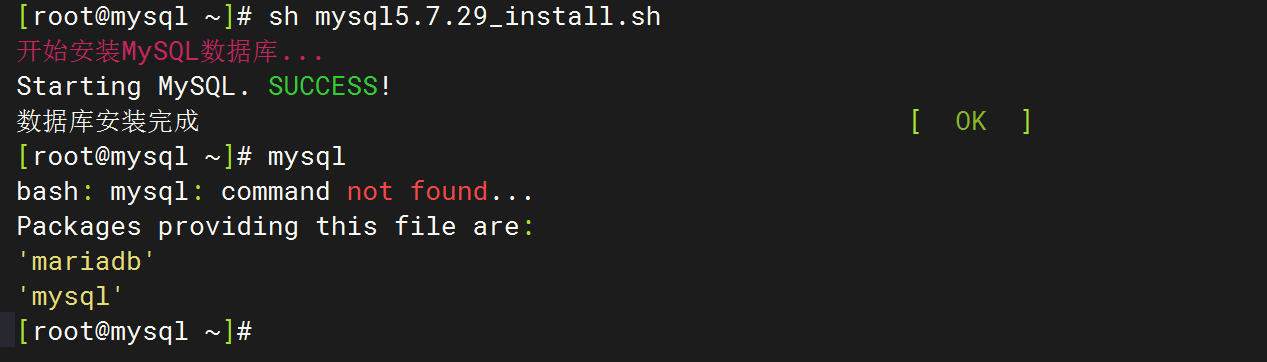
 1[root@vm-template ~]#netstat -antlp|grep mysql
 2tcp6       0      0 :::3306                 :::*                    LISTEN      17705/mysqld
 3[root@vm-template ~]#mysql -uroot -pmagedu
 4mysql: [Warning] Using a password on the command line interface can be insecure.
 5Welcome to the MySQL monitor.  Commands end with ; or \g.
 6Your MySQL connection id is 3
 7Server version: 5.7.29-log MySQL Community Server (GPL)
 8
 9Copyright (c) 2000, 2020, Oracle and/or its affiliates. All rights reserved.
10
11Oracle is a registered trademark of Oracle Corporation and/or its
12affiliates. Other names may be trademarks of their respective
13owners.
14
15Type 'help;' or '\h' for help. Type '\c' to clear the current input statement.
16
17mysql> show databases;
18+--------------------+
19| Database           |
20+--------------------+
21| information_schema |
22| mysql              |
23| performance_schema |
24| sys                |
25+--------------------+
264 rows in set (0.00 sec)
27
28mysql> \q
29Bye
30[root@vm-template ~]#
注意
如果操作系统是centos 8.1.1911,则部署完成后,必须执行如下命令,否则会报错的。


解决办法:
1ln -s /lib64/libncurses.so.6.1 /lib64/libncurses.so.5
2ln -s  /lib64/libtinfo.so.6.1 /lib64/libtinfo.so.5
关于我
我的博客主旨:
- 排版美观,语言精炼;
- 文档即手册,步骤明细,拒绝埋坑,提供源码;
- 本人实战文档都是亲测成功的,各位小伙伴在实际操作过程中如有什么疑问,可随时联系本人帮您解决问题,让我们一起进步!
🍀 微信二维码
x2675263825 (舍得), qq:2675263825。

🍀 微信公众号
《云原生架构师实战》

🍀 个人主页:
🍀 知识库:
🍀 博客:
🍀 csdn
https://blog.csdn.net/weixin_39246554?spm=1010.2135.3001.5421
🍀 知乎
https://www.zhihu.com/people/foryouone
往期推荐
QQ群
玩转Typora+Docusuaurus+起始页交流群:(欢迎小伙伴一起探讨有趣的IT技术,来完成一些漂亮的项目)

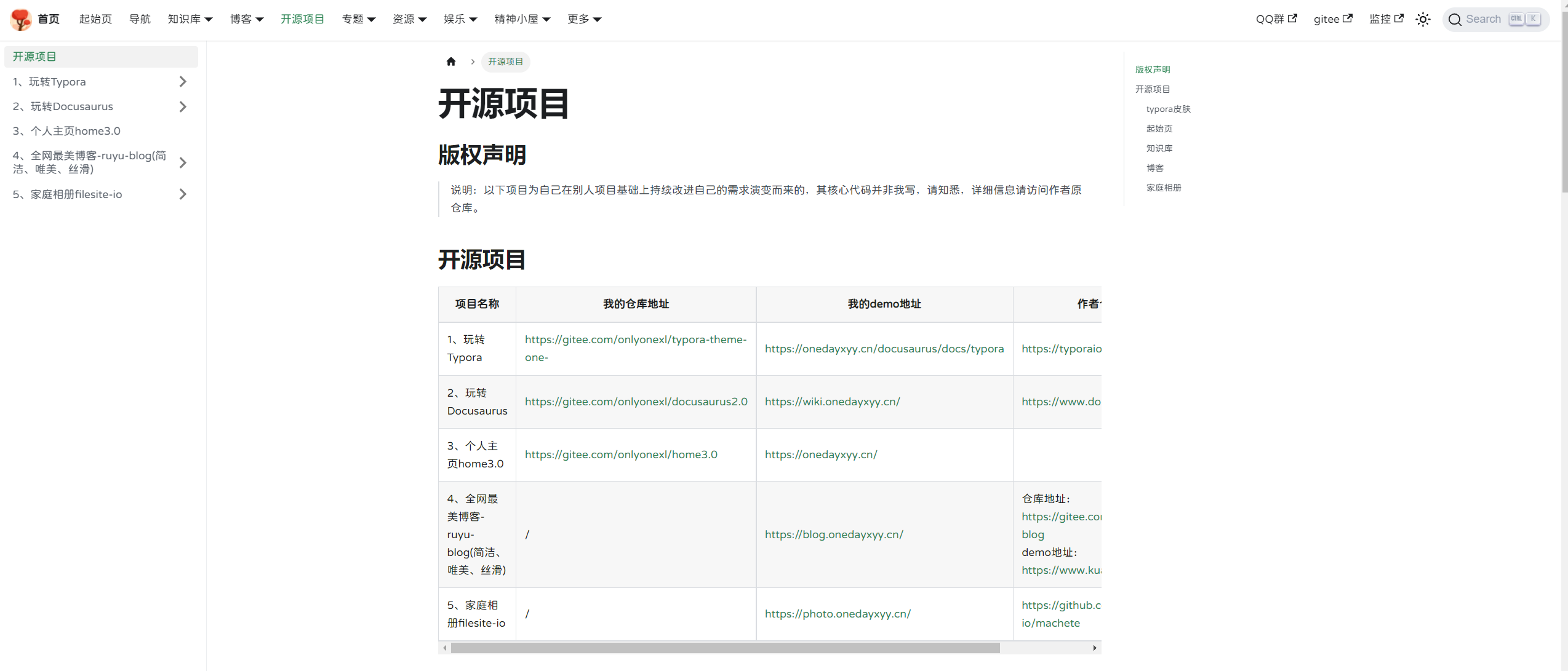
我的开源项目:
https://wiki.onedayxyy.cn/docs/OpenSource
- typora皮肤
https://wiki.onedayxyy.cn/docs/typora

- 起始页
- 知识库
- 博客
- 家庭相册
最后
好了,关于本次就到这里了,感谢大家阅读,最后祝大家生活快乐,每天都过的有意义哦,我们下期见!
📡
推荐使用微信支付

推荐使用支付宝