--
:
--
:
--
curl
最后更新于:
curl

目录
[toc]
1、命令用途
curl字符界面浏览器。
另一个可以用来进行文件传输的工具是 curl,它是对 libcurl 库的一个命令行工具包装。libcurl 库中提供了相应功能的 API,可以在程序中调用。对于 libcurl 库的使用方法介绍超出了本文的讨论范围。curl 使用 URL 的语法来传输文件,它支持 FTP, FTPS, HTTP, HTTPS, TFTP, SFTP, TELNET 等多种协议。curl 功能强大,它提供了包括代理支持,用户认证,FTP 上载,HTTP post,SSL 连接,文件续传等许多特性。
2、基本语法
1curl [options … ] <url>
其中下载参数大约有 80 多个,curl 的各个功能完全依靠这些参数来完成。下面举例说明 curl 的一些基本用法。
3、参数含义
1-I/—head 只显示请求头信息
2
3-v, --verbose       Make the operation more talkative #使操作更健谈
4-H, --header LINE   Custom header to pass to server (H) #自定义头传递给服务器
4、使用案例
范例:执行远程服务器上的脚本
 1➜ curl -sSfL https://raw.githubusercontent.com/longhorn/longhorn/v1.2.3/scripts/environment_check.sh | bash
 2daemonset.apps/longhorn-environment-check created
 3waiting for pods to become ready (0/2)
 4waiting for pods to become ready (0/2)
 5all pods ready (2/2)
 6
 7  MountPropagation is enabled!
 8
 9cleaning up...
10daemonset.apps "longhorn-environment-check" deleted
11clean up complete
12 -f, --fail          Fail silently (no output at all) on HTTP errors (H)
13 -L, --location      Follow redirects (H)
14     --location-trusted like --location and send auth to other hosts (H)
15 -S, --show-error    Show error. With -s, make curl show errors when they occur
16 -s, --silent        Silent mode. Don't output anything
或者:
1curl -L https://istio.io/downloadIstio | sh -
范例:curl ip
 1[root@master1 ~]#kubectl get svc -l app=my-nginx
 2NAME       TYPE        CLUSTER-IP       EXTERNAL-IP   PORT(S)   AGE
 3my-nginx   ClusterIP   10.110.207.185   <none>        80/TCP    25h
 4
 5[root@master1 ~]#curl 10.110.207.185
 6<!DOCTYPE html>
 7<html>
 8<head>
 9<title>Welcome to nginx!</title>
10<style>
11html { color-scheme: light dark; }
12body { width: 35em; margin: 0 auto;
13font-family: Tahoma, Verdana, Arial, sans-serif; }
14</style>
15</head>
16<body>
17<h1>Welcome to nginx!</h1>
18<p>If you see this page, the nginx web server is successfully installed and
19working. Further configuration is required.</p>
20
21<p>For online documentation and support please refer to
22<a href="http://nginx.org/">nginx.org</a>.<br/>
23Commercial support is available at
24<a href="http://nginx.com/">nginx.com</a>.</p>
25
26<p><em>Thank you for using nginx.</em></p>
27</body>
28</html>
29[root@master1 ~]#
案例:curl如何测试一个url是否发生重定向了?
要使用 curl 测试一个 URL 是否发生了重定向,你可以通过 -I(或 --head)参数来发送一个 HEAD 请求,这样 curl 只会获取响应头部而不会下载页面内容。同时,使用 -L 参数可以让 curl 跟随服务器的重定向。结合使用 -v 参数可以提供详细的过程输出,包括请求和响应的头部信息。
如果你只想看重定向链和最终的 URL,而不跟随重定向,你可以使用 -I 参数配合 -L 和 -s 参数。-s 参数会让 curl 运行在 silent 模式,减少输出的冗余信息,但你可能会想结合 -v 来看详细的过程。
跟随重定向查看最终目的地
如果想要检测 URL 最终重定向的位置,可以这么做:
1curl -L -I http://example.com
2
3curl -L -I http://onedayxyy.com
这里,-L 会让 curl 跟随重定向,-I 会发送 HEAD 请求。
查看重定向链
如果想查看整个重定向过程中每一步的 URL,可以使用 -v 参数,但不使用 -L 参数,这样 curl 不会跟随重定向:
1curl -I -v http://example.com
这样 curl 会显示发送请求和接收响应的详细过程,包括服务器返回的所有重定向响应头。查找输出中的 Location: 部分,这会告诉你下一步的重定向 URL。
请记住,如果是查看 HTTPS 网站的重定向情况,直接使用相应的 https:// URL。
了解重定向状态码也很有帮助。常见的 HTTP 重定向状态码包括 301(永久重定向)、302(临时重定向)、307(临时重定向,与 302 类似,但保证请求方法不变)和 308(永久重定向,保证请求方法不变)。
注意
在测试时,请确保 URL 是正确的,因为错误的 URL(如拼写错误)可能会导致意料之外的行为,包括但不限于无法解析的主机名、无响应等。
范例:-L -o选项 重定向
 1curl -L "https://github.com/docker/compose/releases/download/1.26.2/docker-compose-$(uname -s)-$(uname -m)" -o /usr/local/bin/docker-compose
 2cp docker-compose-Linux-x86_64  /usr/local/bin/docker-compose
 3chmod +x /usr/local/bin/docker-compose
 4
 5#测试命令
 6docker-compose
 7Define and run multi-container applications with Docker.
 8
 9Usage:
10  docker-compose [-f <arg>...] [options] [COMMAND] [ARGS...]
11  docker-compose -h|--help
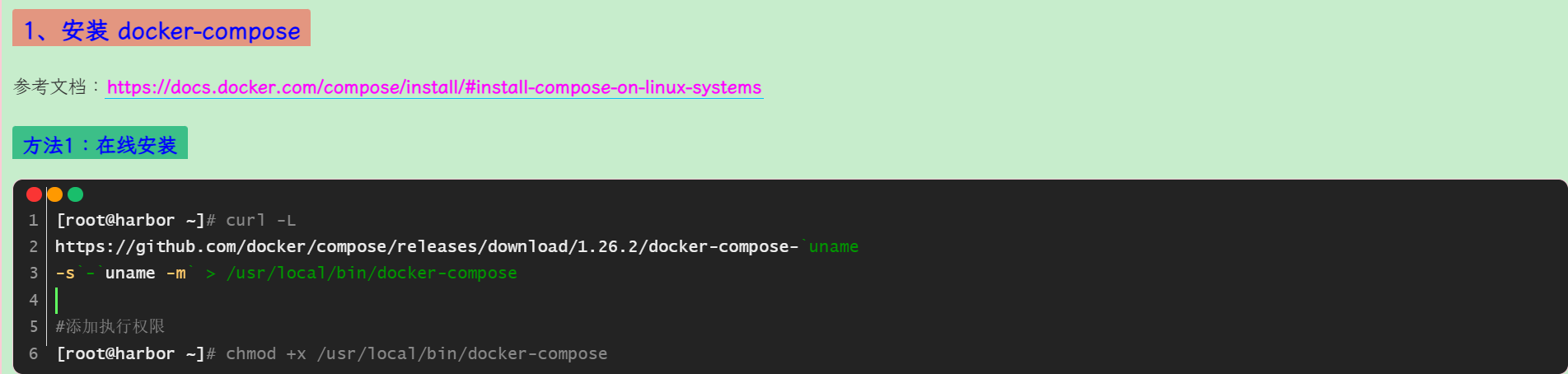
或者不加-o直接使用重定向:
案例:
使用 curl 命令的时候添加了一个 -L 标志,该标志指示 curl 将遵循重定向。
1$ kubectl exec "${SOURCE_POD}" -c sleep -- curl -sSL -o /dev/null -D - http://edition.cnn.com/politics
2# 输出如下结果
3HTTP/1.1 301 Moved Permanently
4# ......
5location: https://edition.cnn.com/politics
6
7HTTP/2 200
8content-type: text/html; charset=utf-8
9# ......
📌 案例:docker-compose安装
1curl -L https://github.com/docker/compose/releases/download/1.26.2/docker-compose-`uname -s`-`uname -m` > /usr/local/bin/docker-compose
2
3#添加执行权限
4chmod +x /usr/local/bin/docker-compose
范例:-v -H参数
 1curl -v http://172.29.9.51 -H 'Host: ngdemo.qikqiak.com'
 2
 3-v, --verbose       Make the operation more talkative #使操作更健谈
 4-H, --header LINE   Custom header to pass to server (H) #自定义头传递给服务器
 5
 6#查看pod和ingress
 7[root@master1 ingress]#kubectl get ingress my-nginx
 8NAME       CLASS   HOSTS                ADDRESS       PORTS   AGE
 9my-nginx   nginx   ngdemo.qikqiak.com   172.29.9.51   80      23h
10[root@master1 ingress]#kubectl get po -l app=my-nginx
11NAME                        READY   STATUS    RESTARTS   AGE
12my-nginx-7c4ff94949-lwvjf   1/1     Running   0          23h
13
14#验证ingress应用
15[root@master1 ingress]#curl -v http://172.29.9.51 -H 'Host: ngdemo.qikqiak.com' #注意下这个命令的用法
16* About to connect() to 172.29.9.51 port 80 (#0)
17*   Trying 172.29.9.51...
18* Connected to 172.29.9.51 (172.29.9.51) port 80 (#0)
19> GET / HTTP/1.1
20> User-Agent: curl/7.29.0
21> Accept: */*
22> Host: ngdemo.qikqiak.com
23>
24< HTTP/1.1 200 OK
25< Date: Mon, 03 Jan 2022 08:51:03 GMT
26< Content-Type: text/html
27< Content-Length: 615
28< Connection: keep-alive
29< Last-Modified: Tue, 28 Dec 2021 15:28:38 GMT
30< ETag: "61cb2d26-267"
31< Accept-Ranges: bytes
32<
33<!DOCTYPE html>
34<html>
35<head>
36<title>Welcome to nginx!</title>
37<style>
38html { color-scheme: light dark; }
39body { width: 35em; margin: 0 auto;
40font-family: Tahoma, Verdana, Arial, sans-serif; }
41</style>
42</head>
43<body>
44<h1>Welcome to nginx!</h1>
45<p>If you see this page, the nginx web server is successfully installed and
46working. Further configuration is required.</p>
47
48<p>For online documentation and support please refer to
49<a href="http://nginx.org/">nginx.org</a>.<br/>
50Commercial support is available at
51<a href="http://nginx.com/">nginx.com</a>.</p>
52
53<p><em>Thank you for using nginx.</em></p>
54</body>
55</html>
56* Connection #0 to host 172.29.9.51 left intact
57
58#或者在浏览器里测试
范例:-I/—head 只显示请求头信息
 1-I/—head 只显示请求头信息
 2
 3-I, --head
 4       (HTTP/FTP/FILE) Fetch the HTTP-header only! HTTP-servers feature the command HEAD which  this  uses
 5       to  get  nothing  but the header of a document. When used on an FTP or FILE file, curl displays the
 6       file size and last modification time only.
 7
 8[root@k8s-master ~]#curl -I 10.104.197.77:80 #这个10.104.197.77:80 通过
 9HTTP/1.1 200 OK
10Server: nginx/1.21.0
11Date: Sat, 26 Jun 2021 09:02:37 GMT
12Content-Type: text/html
13Content-Length: 612
14Last-Modified: Tue, 25 May 2021 12:28:56 GMT
15Connection: keep-alive
16ETag: "60aced88-264"
17Accept-Ranges: bytes
18
19[root@k8s-master ~]#curl --head 10.104.197.77:80
20HTTP/1.1 200 OK
21Server: nginx/1.21.0
22Date: Sat, 26 Jun 2021 09:02:43 GMT
23Content-Type: text/html
24Content-Length: 612
25Last-Modified: Tue, 25 May 2021 12:28:56 GMT
26Connection: keep-alive
27ETag: "60aced88-264"
28Accept-Ranges: bytes
排错:--data-raw 选项报错(已解决) curl发送post数据
- gpt问答:2023年11月2日
问题:
报错提示
 1[root@docker 4.envoy]#curl --location --request POST 'http://localhost:8080/endpoints' \
 2
 3--header 'Content-Type: application/json'
 4
 5--data-raw '{
 6"address": "172.17.0.7",
 7"port_value": 8081
 8}'
 9curl: option --data-raw: is unknown
10curl: try 'curl --help' or 'curl --manual' for more information
回答:
错误提示表明 --data-raw 选项是未知的。在较早版本的 curl 中,--data-raw 选项可能不可用。你可以尝试使用替代的方法来发送 JSON 数据。以下是一种常见的方法:
1curl --location --request POST 'http://localhost:8080/endpoints' \
2--header 'Content-Type: application/json' \
3--data '{"address": "172.17.0.7", "port_value": 8081}'
上述命令使用 --data 选项,后跟一个合法的 JSON 字符串。这将向指定的端点发送 JSON 数据。确保你的 curl 版本支持这种方式。如果你的 curl 版本依然不支持,请尝试升级 curl 到较新的版本。
经测试正常:
 1[root@docker 4.envoy]#curl --location --request POST 'http://localhost:8080/endpoints' \
 2> --header 'Content-Type: application/json' \
 3> --data '{
 4>     "address": "172.17.0.7",
 5>     "port_value": 8081
 6> }'
 7{
 8  "id": "db8feebe-212e-4161-b5b5-d38217aa3afc"
 9}
10[root@docker 4.envoy]#
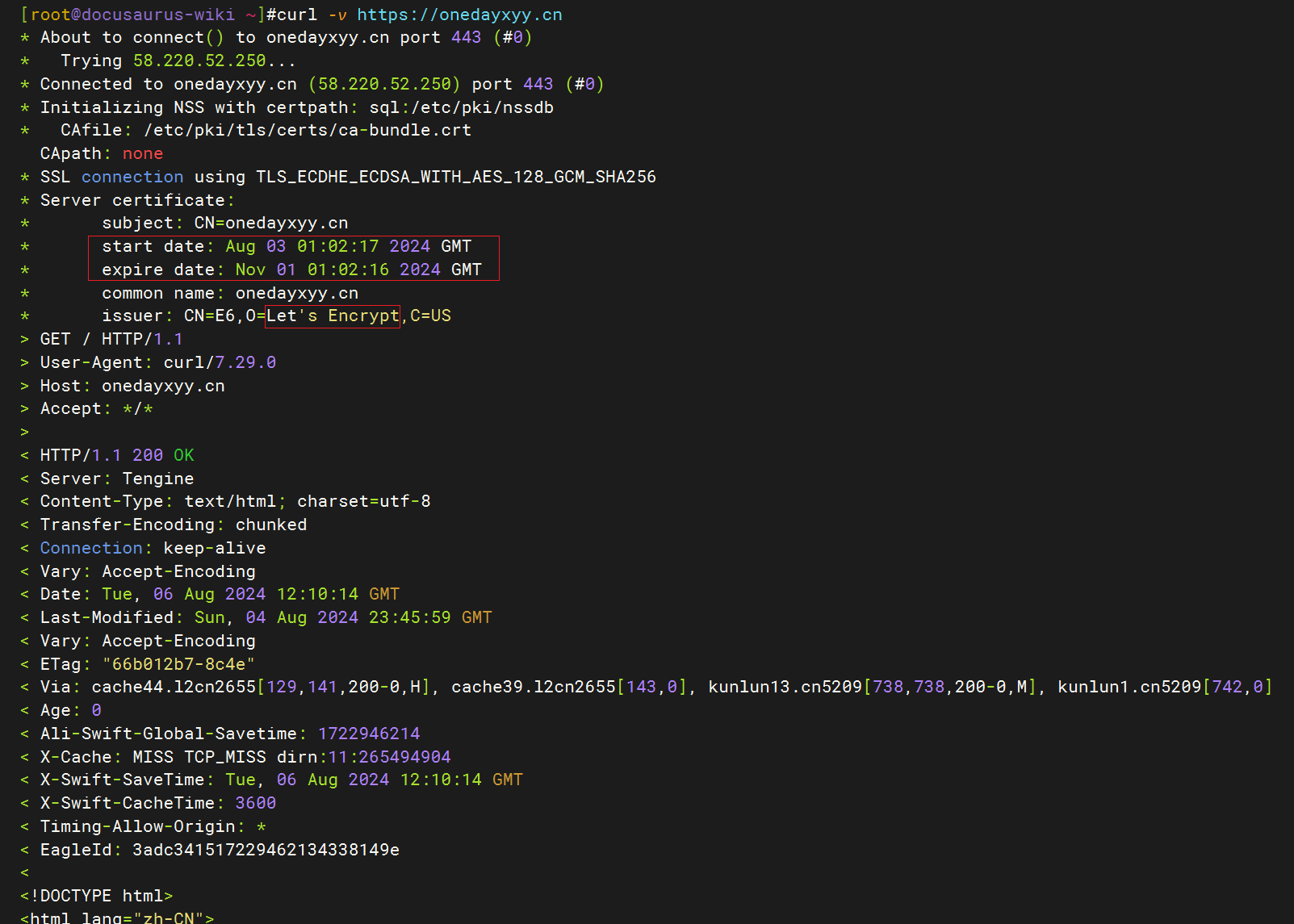
案例:curl如何测试https证书来源极其是否是安全的?
使用 curl 命令可以测试 HTTPS 证书的来源以及验证其是否安全。以下是一些方法和选项,你可以通过这些方法来检查 HTTPS 证书的详细信息:
查看证书信息
使用 -v 或 --verbose 选项可以查看详细的连接过程,包括证书信息。
1curl -v https://example.com
在输出信息中,你可以找到类似如下的信息:
1* Server certificate:
2*  subject: CN=example.com
3*  start date: Aug  1 00:00:00 2023 GMT
4*  expire date: Jul 31 23:59:59 2024 GMT
5*  subjectAltName: host "example.com" matched cert's "example.com"
6*  issuer: C=US; O=Let's Encrypt; CN=R3
7*  SSL certificate verify ok.
1curl -v https://onedayxyy.cn
查看详细证书信息
使用 --cert-info 选项可以获取更详细的证书信息。
1curl --cert-info https://example.com
无命令:。。。
1curl --cert-info https://onedayxyy.cn

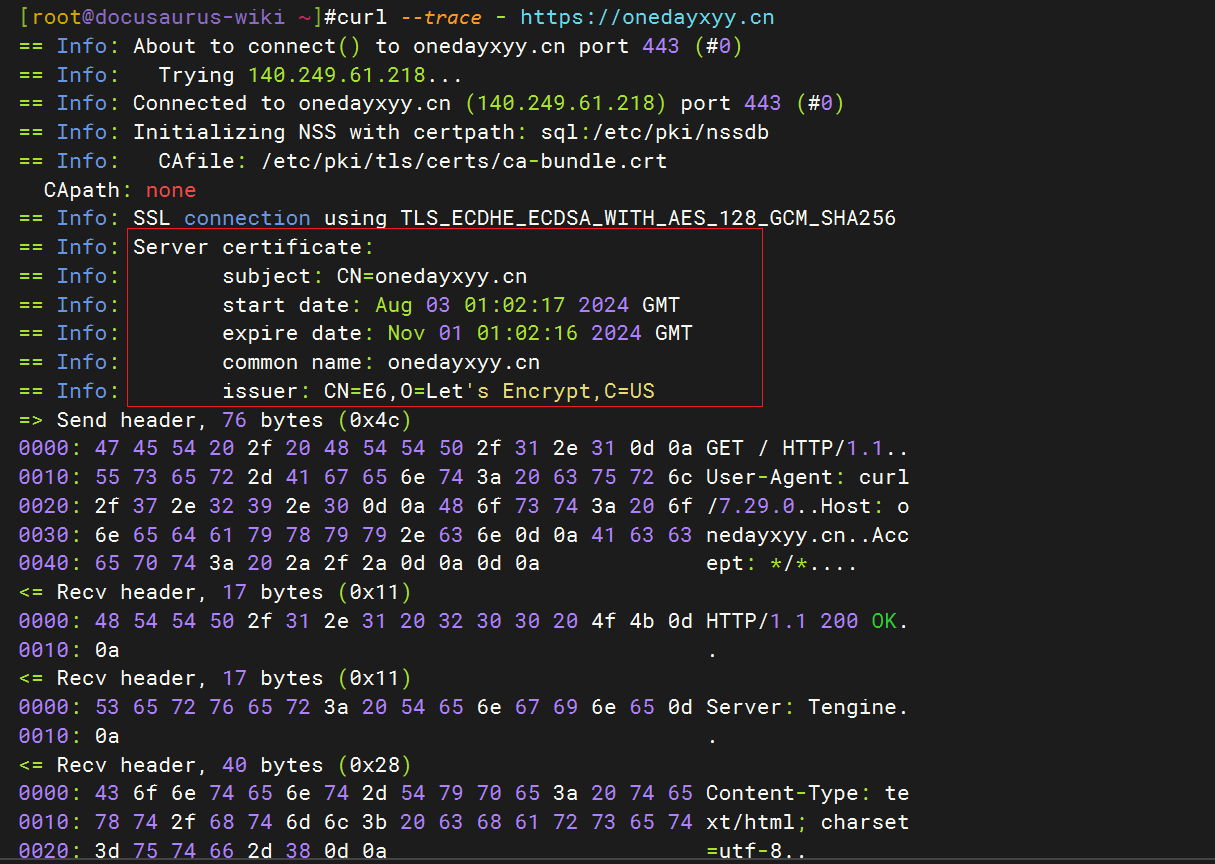
检查证书链
使用 --trace 选项可以追踪完整的证书链。
1curl --trace - https://example.com
1curl --trace - https://onedayxyy.cn
强制验证证书
使用 --cacert 选项指定一个 CA 证书文件来验证服务器的证书。
1curl --cacert /path/to/cacert.pem https://example.com
禁用证书验证(仅用于测试)
如果你仅仅是为了测试,不在意安全性,可以临时禁用证书验证。然而,这个选项应该谨慎使用,不推荐在生产环境中使用。
1curl -k https://example.com
使用 OpenSSL 检查证书
除了 curl,你也可以使用 openssl 命令来获取更多证书信息。
1openssl s_client -connect example.com:443 -servername example.com
在输出中,你可以看到证书的详细信息,包括证书链、证书颁发者、有效期等。
总结
通过 curl 的不同选项,你可以获取 HTTPS 证书的详细信息,验证其安全性以及证书链的来源。以下是一些常用命令的汇总:
curl -v https://example.com:查看详细的连接及证书信息。curl --cert-info https://example.com:获取详细的证书信息。curl --trace - https://example.com:追踪完整的证书链。curl --cacert /path/to/cacert.pem https://example.com:指定 CA 证书文件进行验证。
这些方法将帮助你了解 HTTPS 证书的来源和安全性。
关于我
我的博客主旨:
- 排版美观,语言精炼;
- 文档即手册,步骤明细,拒绝埋坑,提供源码;
- 本人实战文档都是亲测成功的,各位小伙伴在实际操作过程中如有什么疑问,可随时联系本人帮您解决问题,让我们一起进步!
🍀 微信二维码
x2675263825 (舍得), qq:2675263825。

🍀 微信公众号
《云原生架构师实战》

🍀 csdn
https://blog.csdn.net/weixin_39246554?spm=1010.2135.3001.5421
🍀 知乎
https://www.zhihu.com/people/foryouone
往期推荐
QQ群
《玩转Typora+Docusuaurus+起始页》交流群:(欢迎小伙伴一起探讨有趣的IT技术,来完成一些漂亮的项目)
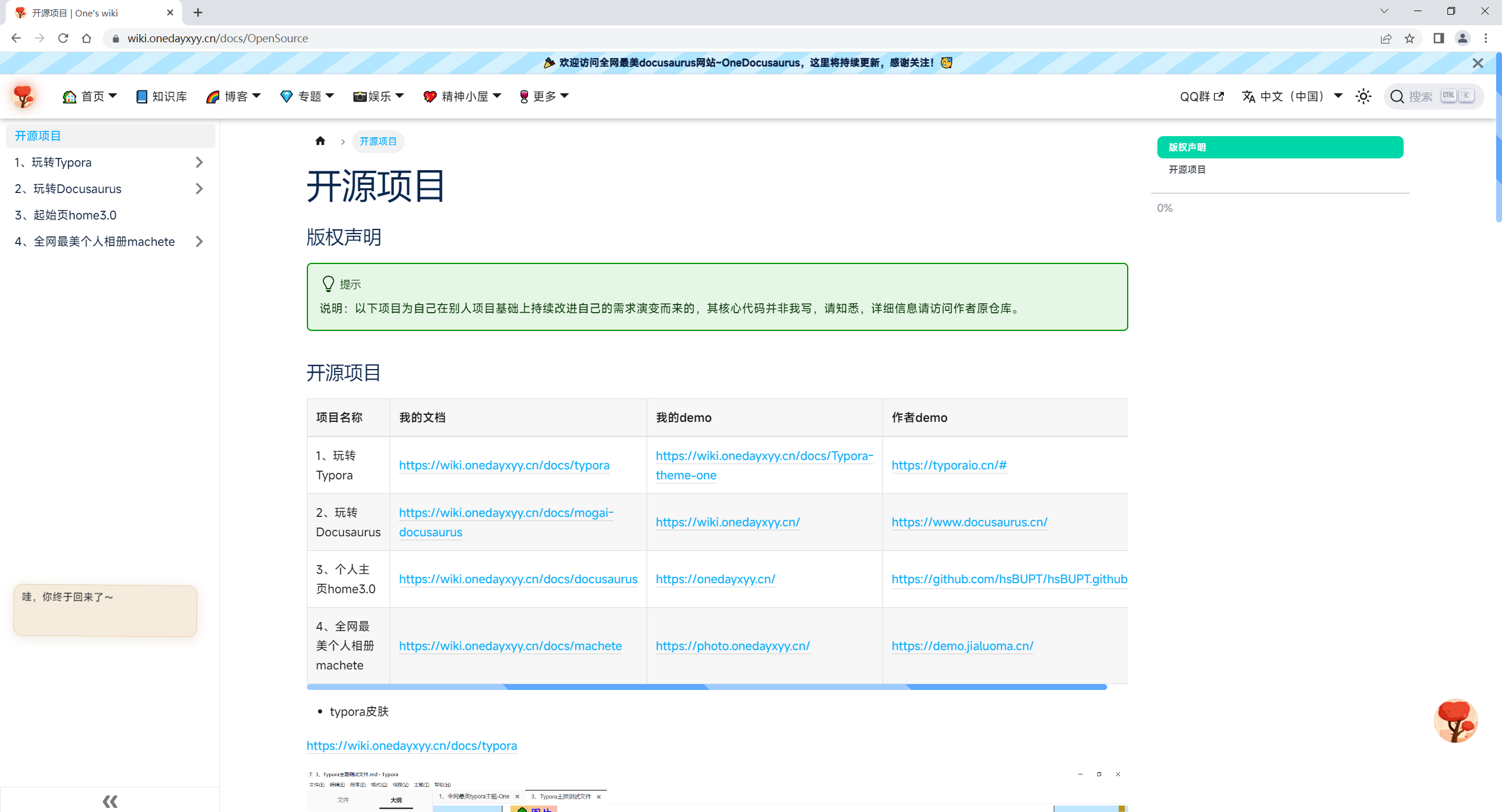
开源项目:
https://wiki.onedayxyy.cn/docs/OpenSource
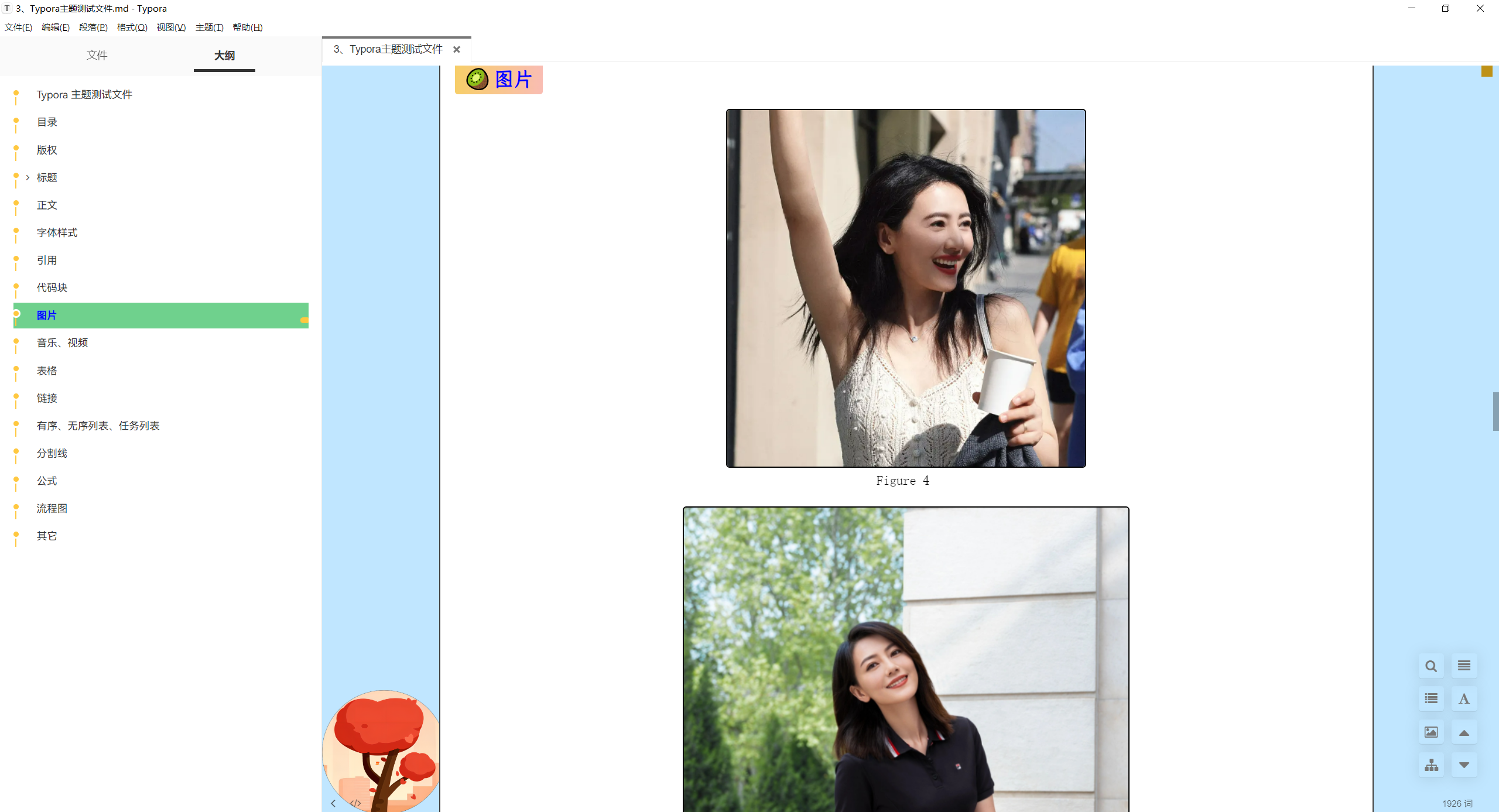
- typora皮肤
https://wiki.onedayxyy.cn/docs/typora
- 起始页
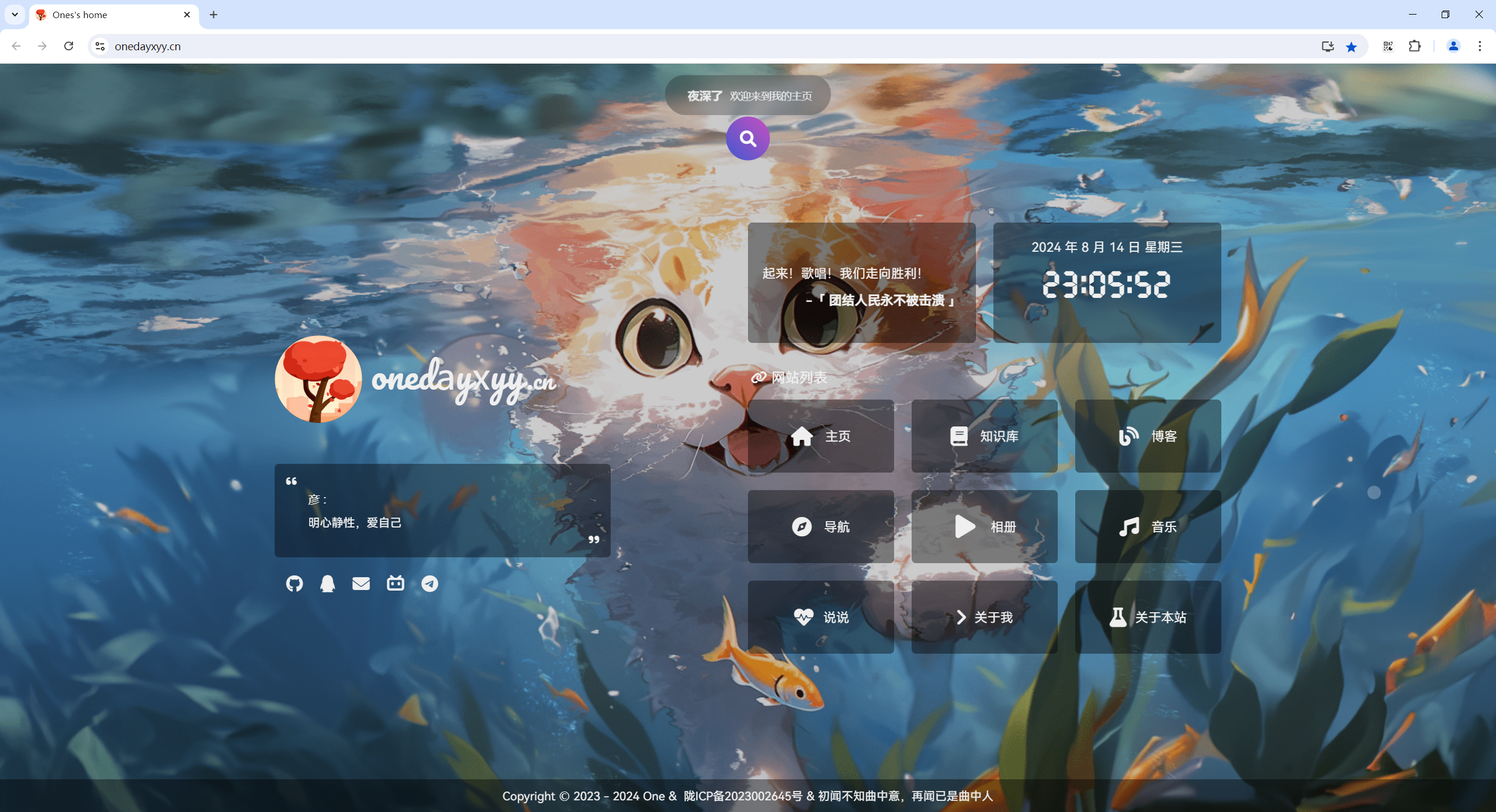
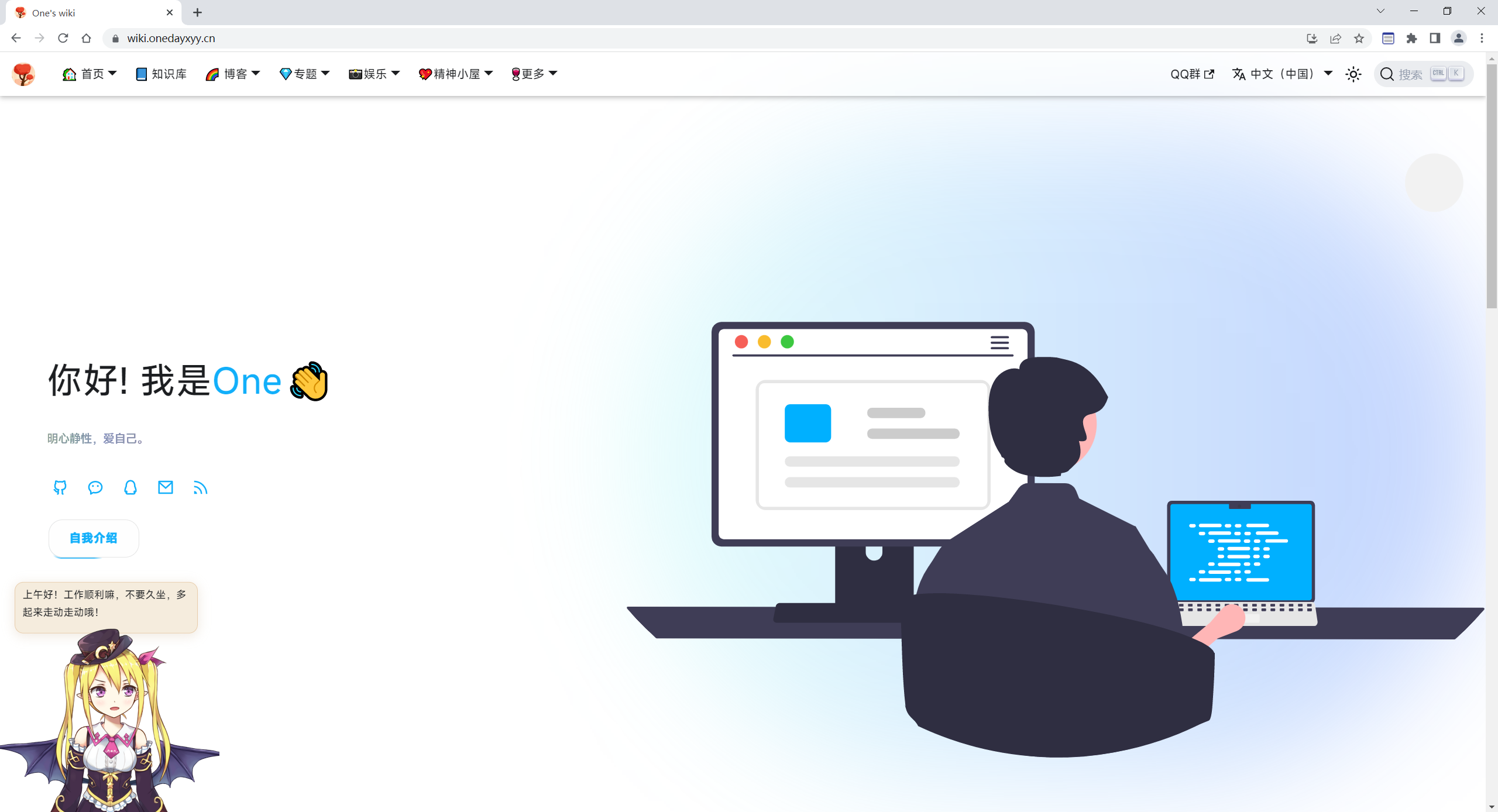
- 知识库/博客
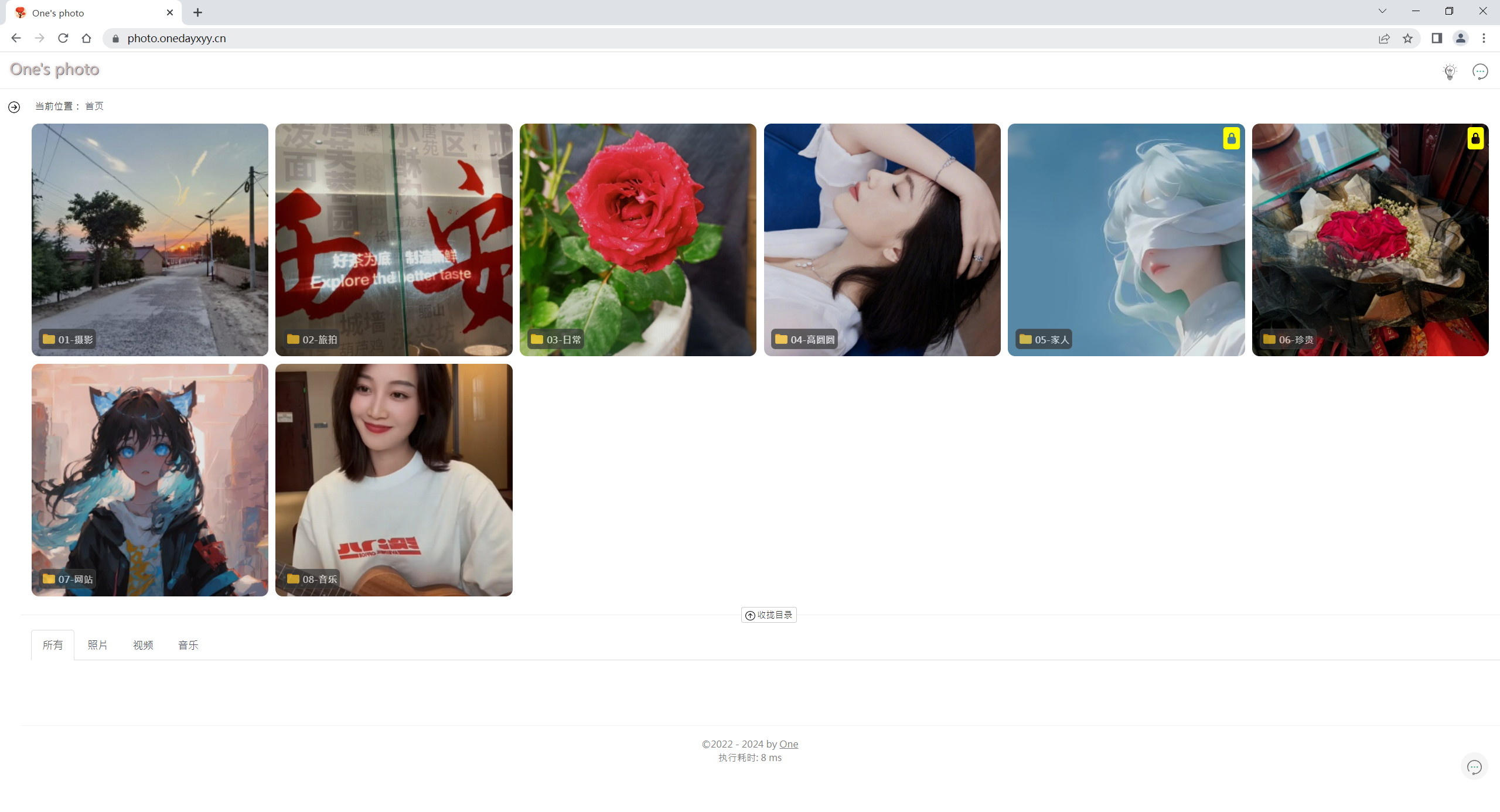
- 个人相册
最后
好了,关于本次就到这里了,感谢大家阅读,最后祝大家生活快乐,每天都过的有意义哦,我们下期见!

📡
推荐使用微信支付
推荐使用支付宝